
Previously when installing ESX it has picked up all devices and automatically installed everything needed to use the server as an ESX host, recently whilst installing a new Dell R710 (a great review of the server can be found on the techhead.co.uk site here) I came across an issue where the additional Network Adapter in the PCI slot was not found by ESX.
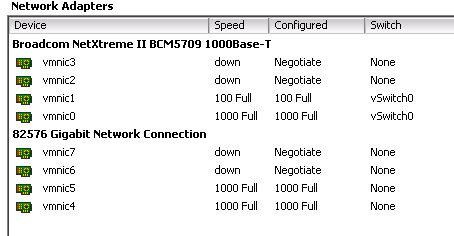
The R710 has 4 internal adapters which were found as below:

After a bit of searching to find out exactly what model of NIC I had (Dell please add part numbers to your delivery notes) I found that the adapter was on the HCL and additional drivers were needed:
http://downloads.vmware.com/d/details/esx_esxi40_intel_82575_82576_dt/ZHcqYmR0QGpidGR3
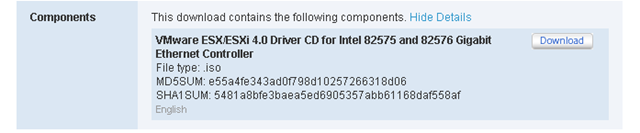
After downloading you are left with 2 options (that I know of) to install these:
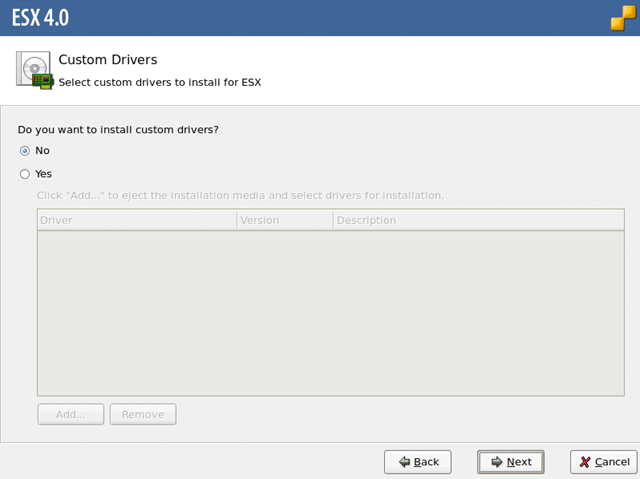
1. Write the ISO off to a CD and during the install of ESX you can now specify custom drivers, at this point you would insert the ISO and pick up the drivers needed to use the NIC:
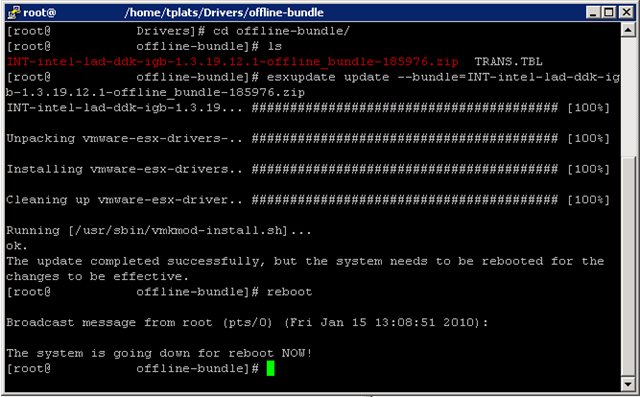
2. As I already had ESX installed I went for the second method, I extracted the ISO using WinRAR and the WINSCP’d them up to the host, once this was done I used the esxupdate command to add the drivers as below:
And the end result is some working adapters !
The moral to this blog post is always check new kit and make sure you don’t need to install the drivers as part of the build !
If this was 4i I was working on then I would have had to use the Remote CLI to install the drivers as so:
C:\Program Files\VMware\VMware vSphere CLI\bin>vihostupdate.pl –server ESXHOST1 –username root –password XXXXXX –bundle c:\INT-intel-lad-ddk-igb-1.3.19.12.1-offline_bundle-185976 –install
Thanks !
You saved our day with this post !
Using the DELL T710 with 4x Quad Intel NIC’s
Jonas
Nice howto. Just wanted to post that I actually used these steps on an esxi 4 update 1 host on similar hardware (Dell T610). I didn’t see the tip at the bottom on how to do it for esxi until to late (would have made it a lot easier :P).
I had ssh enabled on this server and used the datastore to upload the extracted ISO files (couldn’t get WINSCP to work), then ran the relevant esxupdate command pointing it to the zip file on the datastore location.
After rebooting the NIC’s were now present under Network Adapters in the vSphere client. Everything appears ok so far, not sure if there is any downside to running it this way on an esxi host (without using the Remote CLI method) but will post back if i have any trouble! I think it should be ok as I guess the remote CLI method would do a similar process to that outlined in this article…
Thanks for the post. Dell support just pointed me to this link for my new ESXi box not seeing the PCI network card
thanks.
Thanks for your Reply.
I have 2 Dell R610 with additional 2 x 4 Intel 82576 nic. And both are running ESX4.0 update1.I followed the procedure given here by you. I can able to see all the 12 network adapters fine in one machine, but not on the other machine.
Later I found that the driver is not loading in one of the machine. I am not able to see the module “igb.o” is not running.
How to start the driver manually? how to see the error messages while loaidng the drivers.
(I am not an expert in Linux kernals..)
-Ramesh
Have you checked the card is on the HCL and that there are drivers for it?
Even after doing the esxupdate i am not seeing the intel nic cards in the vsphere.
I have 85976 Inter quad 4 cards 2 numbers. out of 12 ports VM shows only 4 (onboard) nic cards in the networking menu in Vsphere.
I am using ESX4.0 Update 1. Please suggest me, what else is missing.
Regards
Ramesh V
Here you can find a howto about slipstreaming the drivers into the ESX install media: http://patrickvanbeek.wordpress.com/2010/01/30/slipstreaming-drivers-in-the-esx4i-install-iso
Thanks, but i can’t find that option when i install ESXi, 🙁
Yes you can, you can do this during the install, there is an option to install a custom driver.
Thanks.
If i do a new ESXi 4.0 update 1 installation on a server with Intel 82576 NIC, can i load driver for it on my install process as well as ESX’s ‘Custom Drivers’?
Thanks, this addressed my EXACT problem and I sincerely appreciate the post!!
@Chris, The built in 4 x Adapters are broadcom and were found fine, this was an additional nic.
Interesting. I put v4.0 on a Dell R610 and R710 back in August 2009 and didn’t have a problem. I wonder if Dell changed the motherboard, VMware changed the drivers bundled in U1? I’m not sure what else it could be.