
Recently I have had a few comments on an old post I wrote showing a one-liner to get the VM’s disk sizes for each VM, I was asked if there was a way to export this information into a CSV file.
The easy answer is yes but what you need to do is build up a container and then add each part of the information to the container, this is quite common practice in PowerShell, its a great technique where you can basically build and populate your own information and then just add to it, once you are completed you can then take your container and export it to whatever format you wish, for example:
The one-liner mentioned in my previous post simply outputted the data one VM at a time to the screen, whilst this was great for looking at the information, when we try and export it things start to go wrong !
The new script, below, may take up more lines but is far more efficient and adaptable.
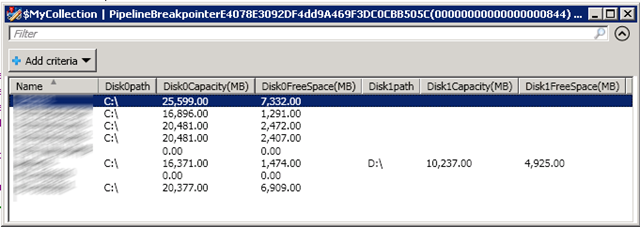
The script:
Connect-VIServer MYVISERVER
$MyCollection = @()
$AllVMs = Get-View -ViewType VirtualMachine | Where {-not $_.Config.Template}
$SortedVMs = $AllVMs | Select *, @{N="NumDisks";E={@($_.Guest.Disk.Length)}} | Sort-Object -Descending NumDisks
ForEach ($VM in $SortedVMs){
 $Details = New-object PSObject
 $Details | Add-Member -Name Name -Value $VM.name -Membertype NoteProperty
 $DiskNum = 0
 Foreach ($disk in $VM.Guest.Disk){
 $Details | Add-Member -Name "Disk$($DiskNum)path" -MemberType NoteProperty -Value $Disk.DiskPath
 $Details | Add-Member -Name "Disk$($DiskNum)Capacity(MB)" -MemberType NoteProperty -Value ([math]::Round($disk.Capacity/ 1MB))
 $Details | Add-Member -Name "Disk$($DiskNum)FreeSpace(MB)" -MemberType NoteProperty -Value ([math]::Round($disk.FreeSpace / 1MB))
 $DiskNum++
 }
 $MyCollection += $Details
}
$MyCollection | Out-GridView
# Export-Csv, ConvertTo-Html or ConvertTo-Xml can be used above instead of Out-Gridview
The output is listed in a strange order due to an issue with this method of using PowerShell as mentioned here.
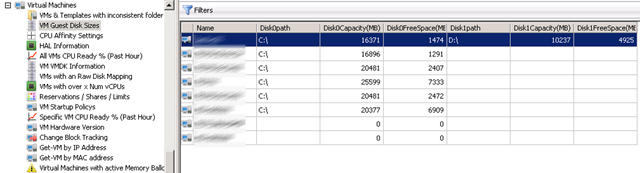
Just a reminder that this information can also be viewed, filtered and exported using my VESI/PowerGUI PowerPack which you can download here. – Nearly 5000 downloads so far !
Hi Alan,
I have been endlessly trying to get your code to pull only the data if the free space percentage meets the certain criteria such as -le 5. I can get the code to calculate the percentage but can not make it to pull data for i.e percentageleft -le 5. Help would be appreciated. This would make this nice cmdlet complete.
Thanks in advance
Ricardo
liavk,
Have you managed to get this working so it only pulls data if the free space meets the certain criteria? If so, could you please share the code?
Thanks
Please review my script and share any feeedback:
https://code.vmware.com/samples/5120
Amazing. Worked first shot too. Impressed you got the guest disk mapping as well!
Great script, this is really something I was looking for and got it in first hit.
Rest of manipulating the script the way I need output can be done, at least I have all required data.
Thanks again
I’m joining this conversation quite late. The information is great, but what I need is to know the storageformat (Thick, thin, etc) of each hard disk as well.
Thanks for the script.
Joy
Hi I need a help, I need a powershell script to identify the attached vdisk and non vdisk in VM vsphere.
Also looking for a way to sort out drive letters… specifically ONLY reporting on C:\
I’ve tinkered with many lines within these scripts to no avail
Hi how to get a Disk free % to be in red color if its less than some %
Can some one help
its not working i modified also pls check on this..
$report = Get-VM | where { $_.PowerState -eq “PoweredOn” -and $_.Guest } | Get-VMGuest | %{
$vm =$_
$_.Disks | where {$_.FreeSpace -le $treshold} | `
select @{N=”VMName”;E={$vm.VMName}},Path, @{N=“Capacity(GB)“;E={[math]::Round($_.Capacity/1GB,2)}}, @{N=”freespace(GB)”;E={[math]::Round((($_.freespace)/1GB),2)}}, @{N=“Free Space %“;E={[math]::Round(((100 * ($_.FreeSpace))/ ($_.Capacity)),0)}}
}
foreach ($path in $info){
$freespace = $path.”Free Space %”
$name = $path.Name
$path = $path.DiskPath
if($freespace -lt 40){$emailTo = (“abc@info”)
$emailFrom = (“tes@info”)
$smtpServer = (“mail.info”)
$subject = “Free Space on ”
$body = $report| ft -AutoSize | Out-String
$smtp = new-object Net.Mail.SmtpClient($smtpServer)
$smtp.Send($emailFrom,$emailTo,$subject,$body)}
}
Pingback: PowerCLI script to report Guest OS disk usage - VMwaremine - Mine of knowledge about virtualization
hi all
i take it one step further, i take Alan script and instead of run it manually to monitor my VMDisk size
i create it to send me Email if disk space percentage is lower than 20%
its include VMname, DiskPath, FreeSpace percentage
enjoy
🙂
ForEach ($VM in ( Get-VM |Get-View)){
($info = $VM.Guest.Disk |Select @{N=“Name“;E={$VM.Name}},DiskPath, @{N=“Capacity(GB)“;E={[math]::Round($_.Capacity/ 1GB)}}, @{N=“Free Space(GB)“;E={[math]::Round($_.FreeSpace / 1GB)}}, @{N=“Free Space %“;E={[math]::Round(((100 * ($_.FreeSpace))/ ($_.Capacity)),0)}})|Format-Table
}
foreach ($path in $info){
$freespace = $path.”Free Space %”
$name = $path.Name
$diskpath = $path.DiskPath
if ($freespace -lt 20){Send-MailMessage -to mymail@example.com -From myVC@example.com -SmtpServer MyMailHost -Subject “Free Space on $name on $diskpath is lower than $freespace %”}
}
hi
i need some help
im using this script for specific VMs in vApp
ForEach ($VM in (Get-VApp “My vApp” | Get-VM |Get-View)){($VM.Guest.Disk |Select @{N=“Name“;E={$VM.Name}},DiskPath, @{N=“Capacity(GB)“;E={[math]::Round($_.Capacity/ 1GB)}}, @{N=“Free Space(GB)“;E={[math]::Round($_.FreeSpace / 1GB)}}, @{N=“Free Space %“;E={[math]::Round(((100 * ($_.FreeSpace))/ ($_.Capacity)),0)}})|Format-Table}
i want to add “if” option that send me email when the “free Space %” is lower than 15
Great script! Only guestion I have is how I can sort the output so that it always shows the C-drive first, then D, E.
Hey Alan, Great script! Is there an easy way for me to get this script to also pull what SAN and datastore the VM’s and other drives are attached to?
hi all,
i have 4 different code & now I want to marge 2 code in classic html table
1: total vm per cluster
2: total space in % available each cluster with warning & error
3:vm created or deleted in last one day
4: vmhost utilisation
@Aaron
I added the following lines to get the DS-Information:
$myDS = Get-Datastore | Where { $_.Id -eq $VM.Datastore}
$Details | Add-Member -Name “DataStore” -MemberType NoteProperty -Value $myDS.Name
My question: How to I get the disksize information on VMs without VMware tools? (These are show up with size 0)
Has any body found a way to add what particular data store each VM is on to this script? I am very curious to know.
it appears that on linux the / includes de free space of mount points – is there a way to resolve this?
great job !
but i have some inconsistent results with Linux Guests disk sizes.
In fact, my Centos 5 guest only have 1 vmdk, which is partitioned like this
/boot = 100mb
/ = many gigabytes. (32gb for example)…
the script only shows me the /boot partition, not the main. not really interesting.
Should i have to use 1 vmdk disk image per partition ? is there another way to get info on partitioned VMDK ? thanks.
As always, excellent work
I have a few questions..please be gentle 🙂
I would like to be able to total the amount of disk space used. I would also like to have a column for .vswp (contractual reasons).
Can someone help me out please?
First a foremost, thank you for the script. It has been very helpful. I am wondering how I can change the sorting so that my export file is sorted by name rather than number of disks. If I change “Sort-Object -Descending NumDisks” to “Sort-Object Name” the list does sort correctly, but I lose all the fields for any disks that aren’t 0. I’m sure it’s something simple…
This script is great. I am curious how I would change it, though, so that the “Name” is the DNS name instead of the name in the VI inventory?
Thanks,
Jeff
Answered my own question by moving the Export-CSV to outside the braces. So my question is now what would be the easiest way to add the datastore, vmdk path, naa…. #, if it’s thin provisioned and if it’s an RDM into the scritp above? I will keep working and hopefully answer this before you read this.
Sorry that should have been:
“Name”,”Diskpath”,”DiskCapacity(MB)”,”DiskFreeSpace(MB)”
“vm1″,”C:\”,”20466″,”9241″
“vm1″,”E:\”,”20473″,”20408″
“vm1″,”F:\”,”102398″,”84243″
Is there anyway to output the disks for a server to it’s own line when exporting to csv. So that the it would like like this?
“Name”,”Diskpath”,”DiskCapacity(MB)”,”DiskFreeSpace(MB)”
“vm1″,”C:\”,”20466″,”9241″
“vm1″,”E:\”,”20473″,”20408″,”F:\”,”102398″,”84243″
@Virtu-Al: Thanks mate – that worked a treat!
KFM, try outputting this to Export-CSV rather than Out-Gridview, it should then work as this is an issue with Out-Gridview.
I’m only seeing up to two disks per VM even though I know the VM has more than two attached disks. I’ve looked at the PS code and can’t fathom why this is happening. Is anyone else getting the same result?
How would i go about adding up the total capacity of all the drives in the VM?
Ok, I can found the filter in vEcoShell. Is there anywhere on the vEcoShell site that lists valid format for regular expressions? Can you pass variables back into the expression, such as ‘Disk1Freespace(MB)’? I need to calculate the ‘free’ space as a % or fraction of the total size. Maybe I’m better off doing it in the code…?
No, hadn’t tried that to be honest. I’ve been trying out vEcoShell after your excellect demo at VMUG Leeds last week. Can I get a VC host connection from PowerGUI managed computers or do I need to add another VMware powerpack to manage it?
You should be able to use the filter feature in PowerGUI to do this, have you tried this already ? – Just above the results in PowerGUI
Hey Al
I am using the guest disk report from your powerpack. I would like to modify it so I can include a filter that allows you to set the % remaining on a disk. For example, I would like to filter for VM’s that only have 10% or less space remaining on a volume.
cheers
@Don Maslanka @Virtu-Al
“I made a modification others may find useful: I added a member named UsedSpace(MB) and calculated the guest vm used disk space (Total – Free).”
Could you provide the code for this? This is exactly what i’m looking to add!
On another note: I just came across these great scripts and definitely appreciate that you are sharing these with everyone.
Hey I am a beginner and I have Powercli working but I cant the script to run. I copied and paste this in the editor and I received a MyCollection error. Please help
Hi, is there any way I can also see the datastore information?
Thanks for the assist, that worked great!
@Chris
You can add a line after line 7 which reads:
$Details | Add-Member -Name VMID -Value $VM.moref -Membertype NoteProperty
@Don Maslanka
On line 5 where it reads:
$AllVMs = Get-View -ViewType VirtualMachine | Where {-not $_.Config.Template}
Chage it to:
$AllVMs = Get-Datacenter “My Datacenter” | Get-VM | Get-View | Where {-not $_.Config.Template}
As written the script will grab every vm guest disk size for all vm’s seen by the VI server.
How can I limit this to specific datacenters?
I made a modification others may find useful: I added a member named UsedSpace(MB) and calculated the guest vm used disk space (Total – Free).
The “vmid” — the one like ‘VirtualMachine-vm-4087’
Which ID are you talking about, can you give me an example please ?
This is awesome — but whats the trick to get the VMId? I’m sure its another
“$Details | Add-Member -Name VMId -Value $VM.SomeDataMember -Membertype NoteProperty”
But every data member I’ve tried thusfar comes back empty …
Pingback: FAQ » PowerCLI – VM Guest Disk Sizes
Just installed vmtools on the linux vms this script is perfect. You’re the man, thanks very much.
@Kayser
Thanks for the comment, Yes this also works on Linux VM’s but you will need to make sure you have VMTools installed and running for it to grab the data.
Thanks. Works great.
Not sure if it’s my environment only, but can it show linux partitions (mount names)? Seems to show only Windows drive letters…
Pingback: Most Tweeted Articles by Virtualization Experts: MrTweet
Pingback: uberVU - social comments
Thanks, just what i’m looking for.