Category Archives: VMware

Recent Issues and Hacking Idiots

image

I don’t normally do these personally type posts but I just wanted to say sorry for the recent issues with my site.

I am still in the process of rebuilding my blog to its former scripting goodness but its taking time.

If you don’t already know my blog was hacked and used to spam and hack other sites, to the hacking idiots I would just like to remind you that my blogs purpose is to share my scripts (for free of charge) to the rest of the community, giving everyone help and knowledge which i have taken time to learn so others do not have to spend so much time finding out.

I am not a multi million dollar corporate company, yes your are hurting the general people with you stupid attacks on my site.

I have put a few things in place which will hopefully help with this in the future and am currently adding everything back into my site from a number of backups.

Sorry for the inconvenience.
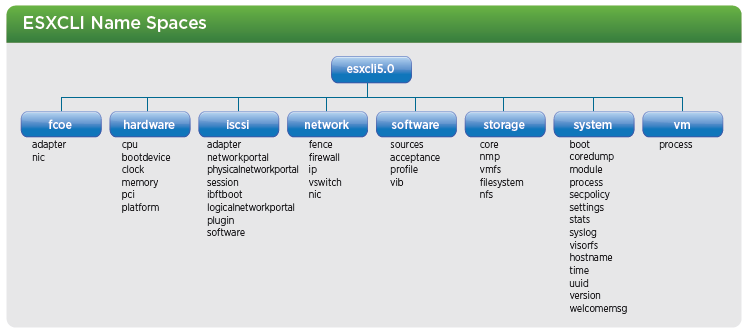
Image Builder and Auto Deploy Powerpack

Recently with vSphere 5 VMware enabled you to deploy the ESXi image via PXE boot to your hosts, to do this you need some PowerCLI knowledge.  Now just because I find PowerCLI easy to use and a great product it doesn’t mean the next person will.

Luckily PowerGUI gave us a great way to add an MMC style interface back on top of the cmdlets, this is called a Powerpack.

The Image Builder and Auto Deploy Powerpack is a PowerGUI Powerpack which enables us as VMware admins to have a graphical interface to Image Builder and Auto Deploy which are currently released as PowerShell snap-ins only.

The Powerpack contains a variety of scripts which will allow you to harness the power of custom ESXi images and stateless deployment.

What Do I need ?

In order to use this Powerpack you will need the following:

  • PowerShell V2
  • PowerCLI 5.0 or later version
  • PowerGUI
  • Download the Powerpack from below

Continue reading →

Quick and simple storage vMotion scripts

Here are a couple of quick storage vMotion scripts, easy enough but they come in useful when moving to a new datastore.

They will obviously be bound by the amount of concurrent sVMotions allowed for your version of ESX, the rest will queue until others have completed.

These are handy to fire off and walk away and then check later rather than having to manually kick each one off.

Option 1

Select the VMs on a certain datastore and move them to a new datastore and change the disk format to thin along the way

Get-Datastore "CurrentDatastoreName" | Get-VM | Move-VM -DiskStorageFormat Thin -Datastore "NewDatastoreName" –RunAsync

Option 2

Import a CSV with Name, NewDatastore headings and move each one of these converting the disk along the way

Import-Csv c:\Tmp\SvMotion.csv | Foreach {
    Get-VM $_.Name | Move-VM -DiskStorageFormat Thin -Datastore $_.NewDatastore -RunAsync
}

Did they move ?

To check these have completed successfully you can use the following:

Get-VM | Select Name, @{N="Datastore";E={$_ | Get-Datastore}}

PowerShell automated install of vShield 5

I have been learning a little about vShield lately, mainly for some work I had to complete for VMworld Las Vegas but also as I started coming up with some cool stuff when using PowerShell to talk the the REST API of vShield.  More on that will come in a following post but I wanted to give just a quick idea of what was possible.

Starting from the beginning, the first thing we will need to do is install vShield 5 into your existing environment, this could be done by downloading the software and installing it manually but why would we do this ? Automation is king !

So the following PowerShell script will show you how to automate the following:

  • Install the vShield ova file into vSphere as a new VM
  • Start the vShield VM
  • Set the IP information
  • Restart the vShield VM
  • Use the vShield API to connect it to vCenter

Of course once we have done this we will need to install the vShield Agent VMs onto our hosts but that’s a great start and we need to leave some things for me to write about in future blog posts !

I would like to point out at this point that I struggled with setting the IP address on the machine, I knew I could connect to the VM using the great Invoke-VMScript cmdlet but tried several ways until I asked for help from the legend that is Mr William Lam, you can see from this post how he managed to do this.  Thanks to William I was also able to follow his method (but with less of that Perl stuff) and enable the last piece of the jigsaw.

A big thanks to Jeff Hicks who also wrote a nice easy to use function to test if your website is available, this came in useful when I was waiting for the management website to come up before I could hook into the API and connect vShield to vCenter. Continue reading →

ESXCLI and killing a stuck VM

With the release of vSphere 5.0 there have been some changes to ESXCLI to bring the fragmented commands into more of a formal and discoverable structure as part of this ESXCLI has been expanded, as a reminder ESXCLI can be used from both vCLI and also in technical support mode, a high level of the new ESXCLI 5.0 name spaces as can be seen below:

image

Kill a VM with ESXCLI

As you can see from above, the structure has clearly changed from VSphere 4.1, lets take a look at an example, if we wanted to kill a stuck VM which has been documented as part of KB Article 1004340 which can be found here.

We can do this by using the following ESXCLI 5.0 example:

Continue reading →

VMware Management with PowerCLI 5.0

As VMware expands its PowerShell offering, known as PowerCLI, the poster has been a key resource for keeping the details close to hand and ensuring the help is right in front of you when you need it.

An updated poster was released at VMworld and adds to the original vSphere PowerCLI core cmdlets enabling people to reference all PowerCLI related details in one handy place.

It includes the details from the following:

  • vSphere
  • Image Builder
  • Auto Deploy
  • Update Manager
  • Licensing
  • View
  • vCloud

Make sure you download the PDF copy of the poster from here. Continue reading →

VMworld Script Club / Developer / Admin Meet up

If your attending VMworld Las Vegas this year and are interested in chatting with Scripter’s, Developers and general admins wanting to automate their life make sure you attend the chat detailed here and below:

Date: Tuesday – August 30th

Time: 11:30 – 13:00

Location: VMworld Community Lounge, located just outside the entrance to the solution exchange

There will be a host of people attending and ready to answer questions so come along and take full advantage, topics will include – but are not limited to:

  • vSphere APIs/SDKs with Pablo Roesch, Mahesh Ramachadran
  • vSphere Java APIs with Steve Jin
  • PowerCLI / Auto Deploy / Image Builder with Alan Renouf and Luc Dekens
  • VI Perl with William Lam
  • vCLI/vMA/ESXCLI with Kyle Gleed
  • vFabric with Carter Shanklin, Justin Murray
  • Java on vSphere with Emad Benjamin
  • SaaS architecture with Gilbert Lau
  • vCO with development team
  • Service automation tooling with Budianto Bong
  • Any other devops topics on your mind

This I am sure will be one of the highlights of VMworld, I know there are going to be many this year !

VMworld PowerCLI–What to expect

Last years sessions by Luc and I had to be the highlight of my year and judging by the comments and scores we received it didn’t go down that badly with the attendees either.  So this year we want to “raise the bar”, we have some fantastic sessions planned and hope you will come and see some of the things we have organised.

If i had to use one word to describe our sessions this year it would be “Super”, after you have seen the sessions you will understand why.

So to give you an idea of what we have planned we decided to give you a quick outline of the sessions and also a mention of the other PowerShell and PowerCLI based sessions at VMworld….

Continue reading →

VMware License Advisor–Official tool

Following my recent posts where I showed how PowerCLI could be used to give you an idea of your vRAM licenses in vSphere 5.0 I wanted to let you know that an official tool has now been released from VMware.

This was first blogged by Yellow-Bricks and vSphere-Land, some of the key things to note about this tool which is different to my tool:

  • Official VMware Support
  • Support for vSphere/VI 3.5/4/5
  • Log into single or multiple vCenters
  • More vCenters can be added after the tool is opened
  • Detailed Virtual Machine inventory for each license type
  • Filter per license type

To make it easier for people, I have shot a quick video showing you how to download and use the tool Continue reading →

Check vCenter Services

A quick function which allows you to check the VMware services on your vCenter server by hooking into windows and looking at the service status, this is useful and something I have been using as part of my vCheck script for a long time but recently became useful for a colleague.

The script can be run with no credential parameter if the current user account has windows privileges on the vCenter server to read the service information.

Example

SNAGHTML14bff311
Continue reading →