Tag Archives: PowerShell

Auto Deploy and Image Builder profile functions

One of the best and one of my favorite ideas from the PowerCLI team (there are so many to choose from) was to include an initialization script when you launch PowerCLI, this gives us the nice black background, custom prompt and also other things like the Get-VICommand function.

Get-VICommand lists all the VMware related cmdlets added to your session, this is useful for quickly listing the VMware cmdlets you need, most people think this is actually a cmdlet which is part of PowerCLI but if you have ever imported the VMware snapin into a PowerShell session and tried to use Get-VICommand you will quickly realize this is not part of the cmdlet set.
Continue reading →

Automated install of vShield Services

Following on from my previous post in this series where I showed how we could deploy vShield manager into our virtual infrastructure I thought I would take it one step further and show how we can use the vShield API’s within PowerShell to make some nice PowerShell advanced functions which will install the vShield services on our hosts.

Forgetting about the functions for a moment this really does show the power of PowerShell and how we can simplify everything down into a couple of lines of code which can be used over and over.  The last line of this code is all that is now needed to install vShield services on not just 1 host but 100’s of hosts !

Watch it in action Continue reading →

Image Builder and Auto Deploy Powerpack

Recently with vSphere 5 VMware enabled you to deploy the ESXi image via PXE boot to your hosts, to do this you need some PowerCLI knowledge.  Now just because I find PowerCLI easy to use and a great product it doesn’t mean the next person will.

Luckily PowerGUI gave us a great way to add an MMC style interface back on top of the cmdlets, this is called a Powerpack.

The Image Builder and Auto Deploy Powerpack is a PowerGUI Powerpack which enables us as VMware admins to have a graphical interface to Image Builder and Auto Deploy which are currently released as PowerShell snap-ins only.

The Powerpack contains a variety of scripts which will allow you to harness the power of custom ESXi images and stateless deployment.

What Do I need ?

In order to use this Powerpack you will need the following:

  • PowerShell V2
  • PowerCLI 5.0 or later version
  • PowerGUI
  • Download the Powerpack from below

Continue reading →

Quick and simple storage vMotion scripts

Here are a couple of quick storage vMotion scripts, easy enough but they come in useful when moving to a new datastore.

They will obviously be bound by the amount of concurrent sVMotions allowed for your version of ESX, the rest will queue until others have completed.

These are handy to fire off and walk away and then check later rather than having to manually kick each one off.

Option 1

Select the VMs on a certain datastore and move them to a new datastore and change the disk format to thin along the way

Get-Datastore "CurrentDatastoreName" | Get-VM | Move-VM -DiskStorageFormat Thin -Datastore "NewDatastoreName" –RunAsync

Option 2

Import a CSV with Name, NewDatastore headings and move each one of these converting the disk along the way

Import-Csv c:\Tmp\SvMotion.csv | Foreach {
    Get-VM $_.Name | Move-VM -DiskStorageFormat Thin -Datastore $_.NewDatastore -RunAsync
}

Did they move ?

To check these have completed successfully you can use the following:

Get-VM | Select Name, @{N="Datastore";E={$_ | Get-Datastore}}

PowerShell automated install of vShield 5

I have been learning a little about vShield lately, mainly for some work I had to complete for VMworld Las Vegas but also as I started coming up with some cool stuff when using PowerShell to talk the the REST API of vShield.  More on that will come in a following post but I wanted to give just a quick idea of what was possible.

Starting from the beginning, the first thing we will need to do is install vShield 5 into your existing environment, this could be done by downloading the software and installing it manually but why would we do this ? Automation is king !

So the following PowerShell script will show you how to automate the following:

  • Install the vShield ova file into vSphere as a new VM
  • Start the vShield VM
  • Set the IP information
  • Restart the vShield VM
  • Use the vShield API to connect it to vCenter

Of course once we have done this we will need to install the vShield Agent VMs onto our hosts but that’s a great start and we need to leave some things for me to write about in future blog posts !

I would like to point out at this point that I struggled with setting the IP address on the machine, I knew I could connect to the VM using the great Invoke-VMScript cmdlet but tried several ways until I asked for help from the legend that is Mr William Lam, you can see from this post how he managed to do this.  Thanks to William I was also able to follow his method (but with less of that Perl stuff) and enable the last piece of the jigsaw.

A big thanks to Jeff Hicks who also wrote a nice easy to use function to test if your website is available, this came in useful when I was waiting for the management website to come up before I could hook into the API and connect vShield to vCenter. Continue reading →

ESXCLI and killing a stuck VM

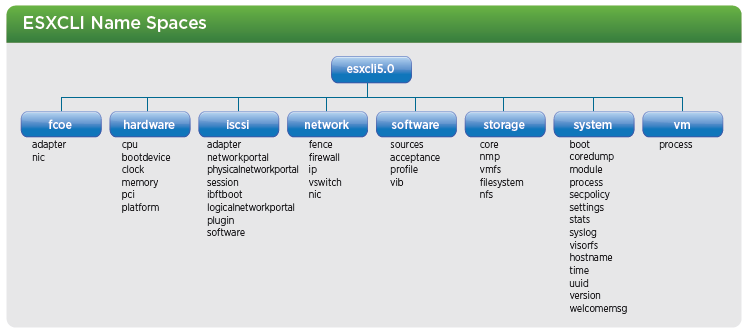
With the release of vSphere 5.0 there have been some changes to ESXCLI to bring the fragmented commands into more of a formal and discoverable structure as part of this ESXCLI has been expanded, as a reminder ESXCLI can be used from both vCLI and also in technical support mode, a high level of the new ESXCLI 5.0 name spaces as can be seen below:

image

Kill a VM with ESXCLI

As you can see from above, the structure has clearly changed from VSphere 4.1, lets take a look at an example, if we wanted to kill a stuck VM which has been documented as part of KB Article 1004340 which can be found here.

We can do this by using the following ESXCLI 5.0 example:

Continue reading →

VMware Management with PowerCLI 5.0

As VMware expands its PowerShell offering, known as PowerCLI, the poster has been a key resource for keeping the details close to hand and ensuring the help is right in front of you when you need it.

An updated poster was released at VMworld and adds to the original vSphere PowerCLI core cmdlets enabling people to reference all PowerCLI related details in one handy place.

It includes the details from the following:

  • vSphere
  • Image Builder
  • Auto Deploy
  • Update Manager
  • Licensing
  • View
  • vCloud

Make sure you download the PDF copy of the poster from here. Continue reading →

Check vCenter Services

A quick function which allows you to check the VMware services on your vCenter server by hooking into windows and looking at the service status, this is useful and something I have been using as part of my vCheck script for a long time but recently became useful for a colleague.

The script can be run with no credential parameter if the current user account has windows privileges on the vCenter server to read the service information.

Example

SNAGHTML14bff311
Continue reading →

vSphere 5 License Entitlement changes

Following my previous post VMware have just announced a change to the License entitlements to vSphere 5, I know I work for VMware and therefore my view is obviously slightly tainted but I personally think this is a good move and it proves that they do listen and value their customers opinions.

So what changes have been made ?

  1. VMware have increased vRAM entitlements for all vSphere editions.
  2. The amount of vRAM has been capped at 96GB of vRAM, so if your VMs have over this amount it will only count the first 96GB.
  3. The amount of vRAM is now calculated as a 12 month average of allocated vRAM

New Entitlements

The changes mean that the following vRAM entitlements per edition will now be granted:

vSphere edition vRAM entitlement
vSphere Enterprise Plus 96 GB
vSphere Enterprise 64 GB
vSphere Standard 32 GB
vSphere Essentials Plus 32 GB
vSphere Essentials 32 GB
Free vSphere Hypervisor 32 GB (Per Host)

Continue reading →

Update and re-composure of View Pools

I was recently asked if it was possible to automate the update of a View Pool every week after the updates had been applied to the virtual machines using Windows Update services, the process is quite straight forward.

This person needed to snapshot  a VM after the updates were completed and then use this snapshot to re-compose the pool, after this was complete they would then use this pool to make sure there were no issues.

The following script does just that, it takes the VM from a given pool and snapshots the VM, it then adds this snapshot back as the active replica for the pool, the idea is to run this as a scheduled task (maybe on Tuesday night) on the View server allowing the snapshot to be created every time it runs.

Watch it in action…

Continue reading →