Tag Archives: PowerShell

Which VMs set your Slot Size ?

A previous post on my blog shows us how to get the slot size information for each cluster which has HA enabled, it also discusses what a slot size is and points to some further reading on Yellow-Bricks.

Readers of the great HA and DRS book will know exactly what a slot size is, if you are unsure then I suggest you read my previous article or the HA and DRS book, it is important information to know.

But which VMs are setting your slot size ?  This is a question which was emailed to me over a year ago, someone had issues finding the VMs which were setting their slot size and they had run out – not a good place to be.

I wrote a script for them and asked them to test it, then I completely forgot about it – until recently when the question came up again.

Now you probably think you know which VM’s are setting your slot size but the thing that struck me is that nearly all the people I asked to check this came back with the same comments:

Yep, it works and wow, I had forgotten about that machine and the resources I allocated to it !

So please, download it and give it a go, who knows you too may have a surprise.

 

Continue reading →

Number of Physical & Virtual CPU’s per host & Cluster

Recently I received a comment on an older post of mine which gave output of the number of virtual CPU’s on a host and also in a cluster, the comment asked if there was a way to export this to a text or html file which is easy enough in PowerShell.

After reading my code I was astounded at how bad it was, one thing i wish I had time for was to go back to some of my earlier code to tidy it up with the tips and tricks I have learnt over the last year and also amend it to use the new features provided to us by the PowerCLI team to make things easier.

One such feature is a cmdlet in the current release of PowerCLI (4.1 U1) (If your not sure what version you are running then just type Get-PowerCLIVersion at the prompt). 

The cmdlet I am referring to is New-VIProperty, this cmdlet allows us to add additional properties to the returned values from certain objects, for a detailed post on this cmdlet look at Luc’s great post here I can also highly recommend his list of New-VIProperty examples which is amazing and can be found here.

Basically this allows us to expand our returned objects from cmdlets to give us further information for an easy example if we run Get-VM we will receive a number of different default properties but what if we wanted something that wasn’t on the list of returned properties ?  Normally we would need to use a PowerShell expression to add this data when we select the data: Continue reading →

PowerCLI Poster 4.1.1 Print at Home/Office

image

Yes that’s right, another version of the PowerCLI Poster has been released, the thing about the previous version is that unless you managed to be at VMworld or a VMUG where these were handed out they were not great to print, not everyone has a A0 printer sat on their desk !

This version is complimentary to the large PowerCLI Poster as it is formatted in a more printable style, it is 8 pages or 4 if you print them in duplex and will allow you to print the PowerCLI goodness and keep it in your bag or save it to your iPad as the formatting is great for that.

So if you don’t have the larger poster I suggest you use the following link to download the PDF and spread the PowerCLI love….

Also check out the links at the bottom of this poster which will take you to some great getting started videos.


PowerCLI 4.1.1 Print-At-Home-Office

New PowerShell Tools from Sapien

Sapien have just released some great PowerShell tools, if you have not tried their tools before I suggest you head over to their site and make use of their free trials before making your mind up for yourself, i for one could not be without the form editor.

They have recently released the 2011 versions of:

Primal Script Editor

A fantastic script editor supporting over 50 languages with syntax colouring, brace matching, code folding and a large number of enhanced features, this editor has everything you need including the following features:

image

  • Comprehensive Help System
  • Multi-Platform Support
  • Integrated Console
  • PrimalSense
  • Multi-Platform Debugger
  • Script Packaging
  • Compare and Merge


Learn more and try it here: http://www.sapien.com/software/primalscript

Primal Forms

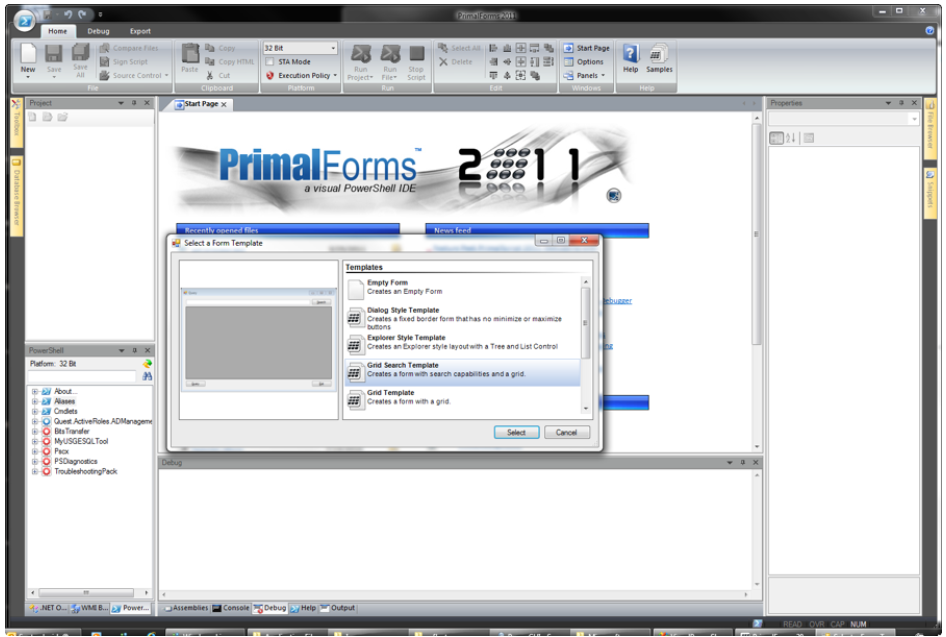
An Enhanced Form Designer makes GUI design fast and easy, Eliminate the need to manually write hundreds of lines of code just drag and drop controls to make fantastic applications in seconds.

image

  • Multiplatform Support
  • PowerShell Script Editor
  • PowerShell Console
  • Script Debugger
  • Create Executables
  • Code Snippets
  • PowerShell Help


Learn more and try it here: http://www.sapien.com/software/primalforms

Using the EMC Cmdlets with PowerCLI

As you know from my previous post “EMC PowerShell Cmdlets – Where to start” I have started looking at the EMC PowerShell cmdlets, one thing I was keen to use them for was to find information on my VMware Datastores.

This information is already available if you have the EMC VSI Plugin installed as GUI based information but I wanted to be able to script against this info, pull various bits of information that I needed and output it into a Spread sheet.

Unfortunately the cmdlets as they stand do not allow you to take a VMware datastore and get the underlying LUN information straight out but what they do allow, with a bit of messing around, is the ability to link the information and pull back what we need, with a little work during my lunch break I managed to create a function to allow us to match the datastore objects with the EMC Lun information.

Wouldn’t it be cool if we had a single cmdlet or function we could pipe Get-Datastore or Get-SCSILun information straight into to retrieve the EMC Lun information  – well now we can !

Continue reading →

EMC PowerShell Cmdlets – Where to start

I managed to finally find time recently to install the EMC PowerShell Cmdlets and have a play, this was mainly evenings and lunchtimes but when else do we get spare time in our working days !

I thought it would be useful to share my experience and show what EMC are doing in the world of PowerShell.

Why you need PowerShell for Storage

As I have mentioned before I use PowerShell as kind of a glue to grab pieces of information from various sources and tie them in together until I have the results I need and then output them into a nice report, so wouldn’t it be great if we could use these Cmdlets to integrate our EMC storage and VMware vCenter environment (Much like the VSI for vCenter) to grab the information from both sources and give us a nice output with information from both sources expanding the datastore to give us LUN information so we know how it looks underneath (further post coming with the script).

Another way to use PowerShell may be to create multiple LUNs, what if I want to add 50 LUNs to my EMC Storage and then assign them to the hosts within my vCenter, then going back to vCenter and telling it about the LUNs and formatting these ready for use, well you get the point.

Continue reading →

Backing up the ESXi System Image

ESXi is based on a system image, VMware used to call this a firmware but some people found this misleading, most people still refer to it as firmware but in this post I will refer to it as a system image.

The system image is a unified image which is the same whether booting from USB, Hard Disk, PXE or any other media. The logic in the first boot will provide auto configuration based on the kind of installation you have.

One thing to remember about ESXi is that it is memory based, so once booted the system image is entirely loaded into memory, ESXi doesn’t care if the original media disappears after boot, there is no reliance on the boot device for running after booting.

ESXi is essentially made up from a number of tardisks (VM TAR files) or archives, these tardisks are mounted into the empty root filesystem in order of enumeration, one of these is called the state tardisk or state.tgz.

The state tardisk is made up of any file in /etc which is marked as sticky, VMware uses the sticky bit to flag the files which are to be included as part of this tardisk but only if they reside under /etc, these are files like esx.conf, inetd.con, passwd….  These are the files which will be persisted after boot.

Continue reading →

PowerCLI 4.1.1 Poster

Recently VMware updated PowerCLI to version 4.1.1, this includes some cool updates including several new cmdlets and a few fixes behind the scenes to make things run faster and fix type names.

With the new version now comes a new poster, many of you will have already seen the PowerCLI Poster, I know thousands have already been given out at VMworld USA, VMworld Europe and also a limited edition version at the Dutch VMUG.  VMware have done a great job updating this and also asking some of the top users of PowerCLI what should also be included or changed.

If you were unlucky enough not to have one of these above your desk on the wall at the moment then it will only be a matter of time, VMware will soon be hopefully giving you the chance to get one of these posters by ordering them online, I am not sure of the details as yet or how much these will cost (if anything) but will keep you updated as I know more.

For now if you want to check out the latest and greatest poster then please click the image below to download the PDF version or click here to find out the history of this poster and how it has become the masterpiece that it is. Continue reading →

Automated support bundles

I received an email recently from a gentleman asking if it was possible to export the support bundles for each host on a daily basis, this can be useful for not only having an archive of your system logs to help resolve problems and work out when they started but also useful for auditing purposes.

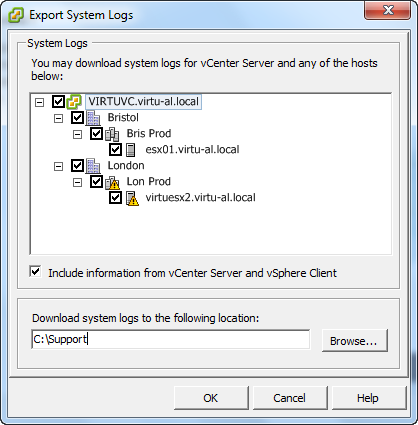
At the moment he was doing this manually every day by using the virtual infrastructure client as can be seen below – you can imagine how long this was taking !

Exporting the logs from the vCenter Client

image

1.  Select the File menu and then Export, Export System Logs…

SNAGHTML3030b74

2.  Select the hosts which you want to download the system logs for and click OK

Continue reading →