Author Archives: Alan

About Alan

Alan Renouf has a role of Automation Frameworks Product Manager at VMware responsible for providing the architects and operators of the cloud infrastructure with the toolkits/frameworks and command-line interfaces they require to build a fully automated software-defined datacenter. Alan is a frequent blogger at http://blogs.vmware.com/vipowershell and has a personal blog at http://virtu-al.net. You can follow Alan on twitter as @alanrenouf.

Using the View PowerCLI cmdlets from another machine

As of version 4.6 VMware View came with some PowerCLI Cmdlets, I wrote a post about these recently after they were released explaining why this was both a good and a bad thing.

I have seen a couple of posts since then using View PowerCLI :

Myself, I never really had a reason to use them that much, I have been busy since they came out and have always been meaning to have a more thorough look at what could be done.

My next post will go into some more detail on the use case but for now I wanted to talk about using these cmdlets from another machine.  Normally with PowerCLI we can connect to the vCenter server using any machine with PowerCLI installed on it whether that be our workstation, an admin server or the vCenter server itself, unfortunately we are unable to do that with the View cmdlets as they stand but PowerShell can help us with this.

One of the features built into Windows PowerShell V2 is called remoting, to find out more information about this feature use the get-help cmdlet in PowerShell as follows: Get-Help About_Remoting.

Continue reading →

HA and DRS Audit

Duncan Epping and Frank Denneman are two of the biggest rockstars in the VMware Community, recently they wrote a fantastic book on HA and DRS, this can be downloaded for a fantastic price from here, if you dont have it then you are not a VMware admin !

But wouldn’t it be great if we could have our own little Duncan or Frank to carry around in our pocket and check our clusters out for HA and DRS issues and best practices – Well now you can – no I haven’t created bobble headed characters, instead I have created…..

The HA and DRS Audit Script

Continue reading →

VMworld 2011 session

Following last years successful session which Luc Dekens and I presented 5 times at the San Francisco and Copenhagen VMworld’s we thought we would again submit another PowerCLI session this year.

But wait, we have not submitted just one for your viewing pleasure but two sessions !

Some of the feedback last year showed that there were some enhancements we could make to our session, taking this on board we have submitted two sessions which hopefully you will find interesting enough to vote for.

image

Continue reading →

PowerCLI Poster 4.1.1 Print at Home/Office

image

Yes that’s right, another version of the PowerCLI Poster has been released, the thing about the previous version is that unless you managed to be at VMworld or a VMUG where these were handed out they were not great to print, not everyone has a A0 printer sat on their desk !

This version is complimentary to the large PowerCLI Poster as it is formatted in a more printable style, it is 8 pages or 4 if you print them in duplex and will allow you to print the PowerCLI goodness and keep it in your bag or save it to your iPad as the formatting is great for that.

So if you don’t have the larger poster I suggest you use the following link to download the PDF and spread the PowerCLI love….

Also check out the links at the bottom of this poster which will take you to some great getting started videos.


PowerCLI 4.1.1 Print-At-Home-Office

London VMUG – 12 May 2011

image

The next London VMUG has been arranged and will take place on Thursday, 12 May 2011.

There will be a change to the normal routine as it now looks like there will be multiple tracks, multiple sponsors and labs. There is also a theme for this VMUG… “Your Journey to the Cloud”. The start time has also changed to 10am. This event will be sponsored by COLT, EMC and Quest.

To book your place at the VMUG visit the VMUG site here, before registering for the event you will also need to sign up as a member of the myvmug site first.

Continue reading →

New PowerShell Tools from Sapien

Sapien have just released some great PowerShell tools, if you have not tried their tools before I suggest you head over to their site and make use of their free trials before making your mind up for yourself, i for one could not be without the form editor.

They have recently released the 2011 versions of:

Primal Script Editor

A fantastic script editor supporting over 50 languages with syntax colouring, brace matching, code folding and a large number of enhanced features, this editor has everything you need including the following features:

image

  • Comprehensive Help System
  • Multi-Platform Support
  • Integrated Console
  • PrimalSense
  • Multi-Platform Debugger
  • Script Packaging
  • Compare and Merge


Learn more and try it here: http://www.sapien.com/software/primalscript

Primal Forms

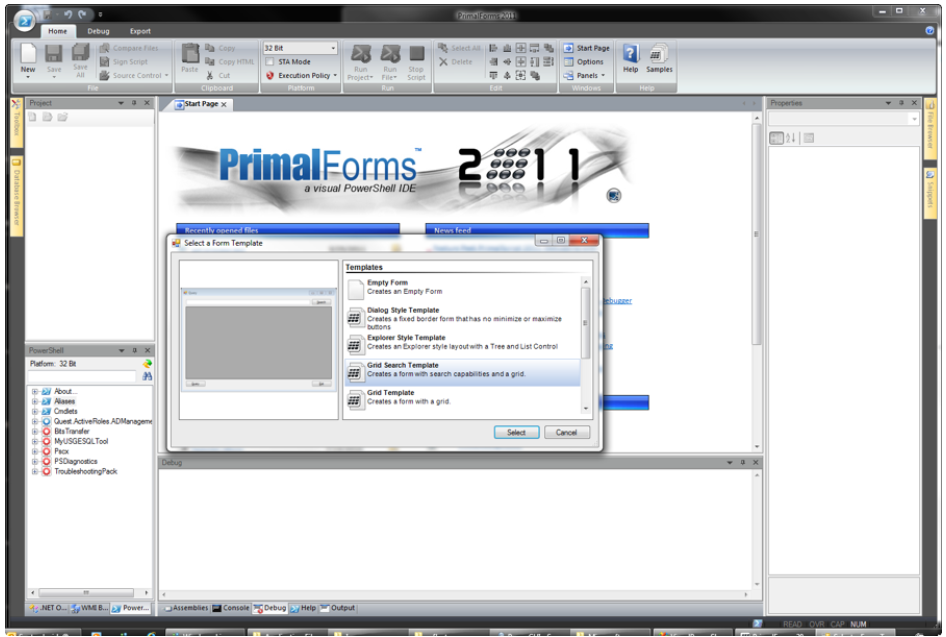
An Enhanced Form Designer makes GUI design fast and easy, Eliminate the need to manually write hundreds of lines of code just drag and drop controls to make fantastic applications in seconds.

image

  • Multiplatform Support
  • PowerShell Script Editor
  • PowerShell Console
  • Script Debugger
  • Create Executables
  • Code Snippets
  • PowerShell Help


Learn more and try it here: http://www.sapien.com/software/primalforms

Enable / Disable VAAI with PowerCLI

If you don’t know what “vStorage APIs for Array Intergration” (VAAI ) is already then I suggest you look it up or at least talk to your storage vendor or VMware about VAAI as this is a great feature added by VMware in vSphere 4.1.

This basically offloads some of the features back to your storage array enabling your vSphere hosts to have more resources and time put aside for what there primary purpose in life is…. “Hosting VMs” and lets face it, the storage array is going to know how to do storage type functions more efficiently than the hosts.  I would suggest reading this post from “Virtual Geek” to get a better understanding of these 3 features which are part of VAAI.

In order to test this we recently needed a way to enable and disable VAAI, this is an easy task on a host, each of the three features have a setting in the “Advanced Settings” configuration tab of the host, these are:

DataMover.HardwareAcceleratedMove
DataMover.HardwareAcceleratedInit
VMFS3.HardwareAcceleratedLocking

These are set to 1 by default which means they are enabled, to disable them simply set them to 0.

So with a simple piece of PowerCLI we can easily see their current configuration status:

Get-VMHost MyESXHost | Get-VMHostAdvancedConfiguration -Name DataMover*, VMFS3.HardwareAcc*

We can also easily disable these features for our host:
Continue reading →

Using the EMC Cmdlets with PowerCLI

As you know from my previous post “EMC PowerShell Cmdlets – Where to start” I have started looking at the EMC PowerShell cmdlets, one thing I was keen to use them for was to find information on my VMware Datastores.

This information is already available if you have the EMC VSI Plugin installed as GUI based information but I wanted to be able to script against this info, pull various bits of information that I needed and output it into a Spread sheet.

Unfortunately the cmdlets as they stand do not allow you to take a VMware datastore and get the underlying LUN information straight out but what they do allow, with a bit of messing around, is the ability to link the information and pull back what we need, with a little work during my lunch break I managed to create a function to allow us to match the datastore objects with the EMC Lun information.

Wouldn’t it be cool if we had a single cmdlet or function we could pipe Get-Datastore or Get-SCSILun information straight into to retrieve the EMC Lun information  – well now we can !

Continue reading →

EMC PowerShell Cmdlets – Where to start

I managed to finally find time recently to install the EMC PowerShell Cmdlets and have a play, this was mainly evenings and lunchtimes but when else do we get spare time in our working days !

I thought it would be useful to share my experience and show what EMC are doing in the world of PowerShell.

Why you need PowerShell for Storage

As I have mentioned before I use PowerShell as kind of a glue to grab pieces of information from various sources and tie them in together until I have the results I need and then output them into a nice report, so wouldn’t it be great if we could use these Cmdlets to integrate our EMC storage and VMware vCenter environment (Much like the VSI for vCenter) to grab the information from both sources and give us a nice output with information from both sources expanding the datastore to give us LUN information so we know how it looks underneath (further post coming with the script).

Another way to use PowerShell may be to create multiple LUNs, what if I want to add 50 LUNs to my EMC Storage and then assign them to the hosts within my vCenter, then going back to vCenter and telling it about the LUNs and formatting these ready for use, well you get the point.

Continue reading →

Change VM Video Memory

I was contacted by a colleague asking if there was an easy way to set the video memory for a number of virtual machines, he had been working with a customer who had received an error when a virtual machine was being Vmotioned, the Vmotion completes successfully but the following error is received:

Insufficient video RAM. The maximum resolution of the virtual machine will be limited to 1176×885 at 16 bits per pixel. To use the configured maximum resolution of 2360×1770 at 16 bits per pixel, increase the amount of video RAM allocated to this virtual machine by setting svga.vramSize=”16708800″ in the virtual machine’s configuration file.

After applying his best Google-Fu he managed to find the following KB article: http://kb.vmware.com/kb/1014593

This clearly tells him the issue and how to resolve this by changing the video memory on the virtual machine, however, after changing this setting he then came across another issue as SRM was unable to protect these virtual machines as described in this KB article: http://kb.vmware.com/kb/1020796

The long and the short of it was that he needed to change the video memory in over 3000 VMs, you can of course do this in the vCenter client using the following screen but for 3000 VMs this may take a while ! Continue reading →